1. Install and prepare an image copy
Choose your system and processor architecture in the download center, then follow the platform installation guide. Prepare a common PNG or JPEG and duplicate it for practice.
PhotoCraft is early alpha. An untouched original gives you a dependable starting point if a save operation or format interchange does not behave as expected.
2. Open the image and inspect the workspace
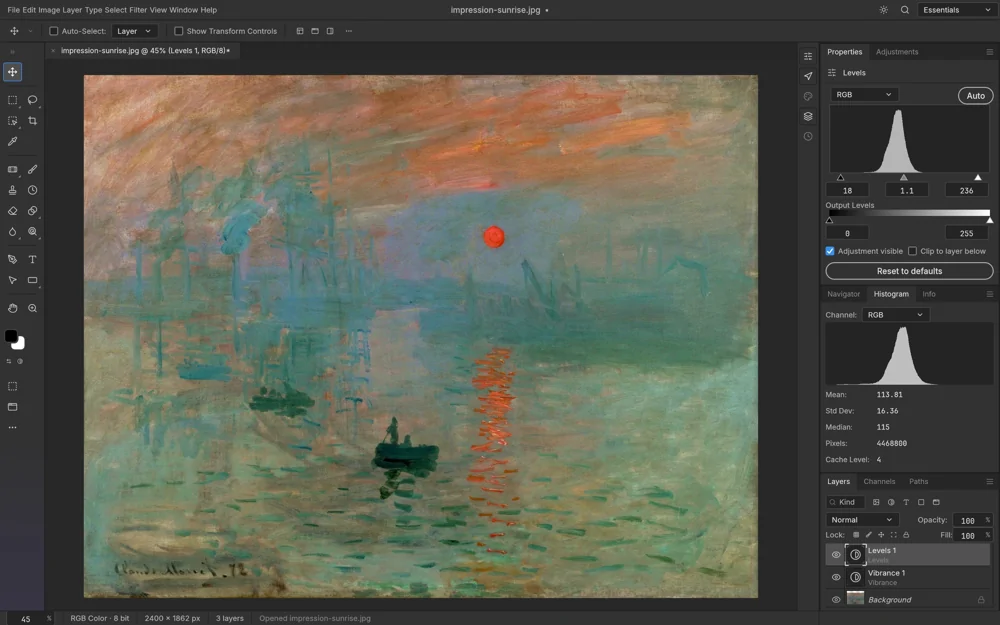
Use the File menu to open the practice image. The canvas shows the composited document, the Layers panel shows its components, and the toolbar selects tools such as Move, Brush and selections.
A flattened image does not automatically contain its creator’s original independent layers. Ordinary JPEG and PNG files usually lack that editing structure. When opening a PSD, inspect the layers that are actually present in the document.
3. Make a revisable adjustment
Add a Curves or Levels adjustment layer and make a small change to the image’s tones. Inspect the histogram and canvas, then temporarily disable the adjustment layer to compare the edit with the source.
An adjustment layer stores parameters that you can revisit. Applying an adjustment directly to pixels has different editing consequences; confirm which operation you are using before committing the change.
4. Save an editable working document
Save a new working version under a separate name. If you need to change individual layers, type or masks later, choose a supported editable document format and reopen the saved result to inspect it.
The extension alone does not guarantee that every editing feature has been preserved. Check the format’s capabilities and the current implementation. For an existing PSD, keep the source and verify the round trip.
5. Export a finished image
Choose PNG or JPEG according to the delivery purpose and inspect size, quality and transparency options in the export workflow. Open the exported file in an image viewer to confirm its appearance and dimensions.
Keep the editable document and the delivery image separately. The first supports your next editing session; the second serves sharing, publishing or handoff. They are different outputs from the same project.